Migrating from Explorer to Page Builder Content Mode in SitecoreAI: A Practical Cutover Guide
Sitecore is retiring Explorer as the everyday, presentation-independent authoring experience in SitecoreAI. Its replacement is Content mode in Page Builder: a focused workspace for creating, finding, opening, and editing content items without walking a deep tree. The change is more than a navigation update. It alters how authors locate content, how teams divide routine and advanced work, and how operational runbooks should describe versions, workflow, publishing, and recovery.
This guide provides a migration plan for content leads, Sitecore administrators, solution architects, and enablement teams. It separates verified product behavior from local implementation choices. It also addresses an unusual timing issue in the current official material: the SitecoreAI changelog says Explorer will no longer be available from September 22, 2026, while several current Explorer documentation pages display October 1, 2026 as the official deprecation date. Treat the earlier date as the safe operational deadline and confirm the exact rollout for your tenant through your Sitecore account and release communications.
The practical goal is not to reproduce Explorer screen for screen. The goal is to preserve the business outcomes authors depend on: create valid items, find the right item, edit the correct language and version, move work through approval, control publishing availability, and publish intentionally. Content mode handles the common path. Content Editor remains relevant for advanced or administrative scenarios, depending on your configuration and roles.
1. Understand the deadline and the scope of the change

Start with the two official statements. The SitecoreAI changelog notice published September 2, 2026 says Explorer is being deprecated and will no longer be available from September 22, 2026. It identifies Page Builder Content mode as the replacement for core content creation and discovery workflows. Current Explorer documentation, however, displays an October 1, 2026 deprecation message. Those dates are close, but they are not interchangeable when you schedule training, freeze procedures, or staff a cutover desk.
Use September 22 as the internal readiness deadline unless Sitecore confirms a different tenant-specific date. That is a risk-control decision, not a claim that the documentation date is wrong. SaaS rollouts can involve staged availability, documentation updates, or account-specific timing. Your plan should therefore record three dates: the earliest published retirement date, the date communicated for your tenant, and the date your organization stops directing authors to Explorer. If the tenant date moves, the operating model remains ready.
The official replacement statement is deliberately scoped. Content mode supports the most common Explorer workflows:
- Creating pages, folders, and content items through guided insert options.
- Finding content through a flat search experience instead of traversing a deep hierarchy.
- Opening an item directly in a full-screen editing view.
- Searching within an open item to locate a field quickly.
This is not a promise that every Explorer control appears in the same place. The same changelog says some advanced or administrative scenarios may still require Content Editor, depending on setup and roles. That sentence should shape the migration. A team that declares “everything moves to Content mode” without testing its own templates, workflow commands, hidden items, advanced items, and publishing duties is replacing evidence with hope.
What is actually being migrated?
No bulk content transfer is described in the official guidance. Explorer and Content mode are authoring interfaces over Sitecore content; the migration is primarily a workflow, access, documentation, and adoption change. Existing items do not need to be recreated merely because authors use a different interface. The migration work sits around the content: task mapping, role testing, template validation, training, operating procedures, and escalation.
That distinction prevents a common planning error. If a project is framed as a data migration, teams may spend time exporting or reconciling content that is already present. Frame it as an authoring-experience cutover. Then add a separate technical workstream only if testing reveals a real configuration issue, such as missing insert options, insufficient rights, an unavailable workflow command, or a custom administrative task that belongs in Content Editor.
Define success before the interface disappears
A successful transition has observable outcomes. An author with the correct role can enter Page Builder, switch to Content mode, find a known item, verify its context, edit the intended field, and save through the product’s normal behavior. A reviewer can compare versions and execute the relevant workflow command. A publisher can select the intended language and publishing options without relying on an obsolete Explorer screenshot. Support staff can route advanced tasks to Content Editor without treating that route as failure.
I recommend measuring completion by tested tasks, not by training attendance. Attendance proves exposure. A task-based check proves that the author can perform work under the new navigation model. This is a contestable preference: some organizations favor course completion as the rollout gate. Task evidence is stronger because it catches permissions and configuration defects that a webinar cannot expose.
Operational rule: retire Explorer instructions on the date your replacement runbooks pass role-based task tests, or by the earliest applicable Sitecore retirement date, whichever comes first.
2. Replace the Explorer mental model instead of copying it
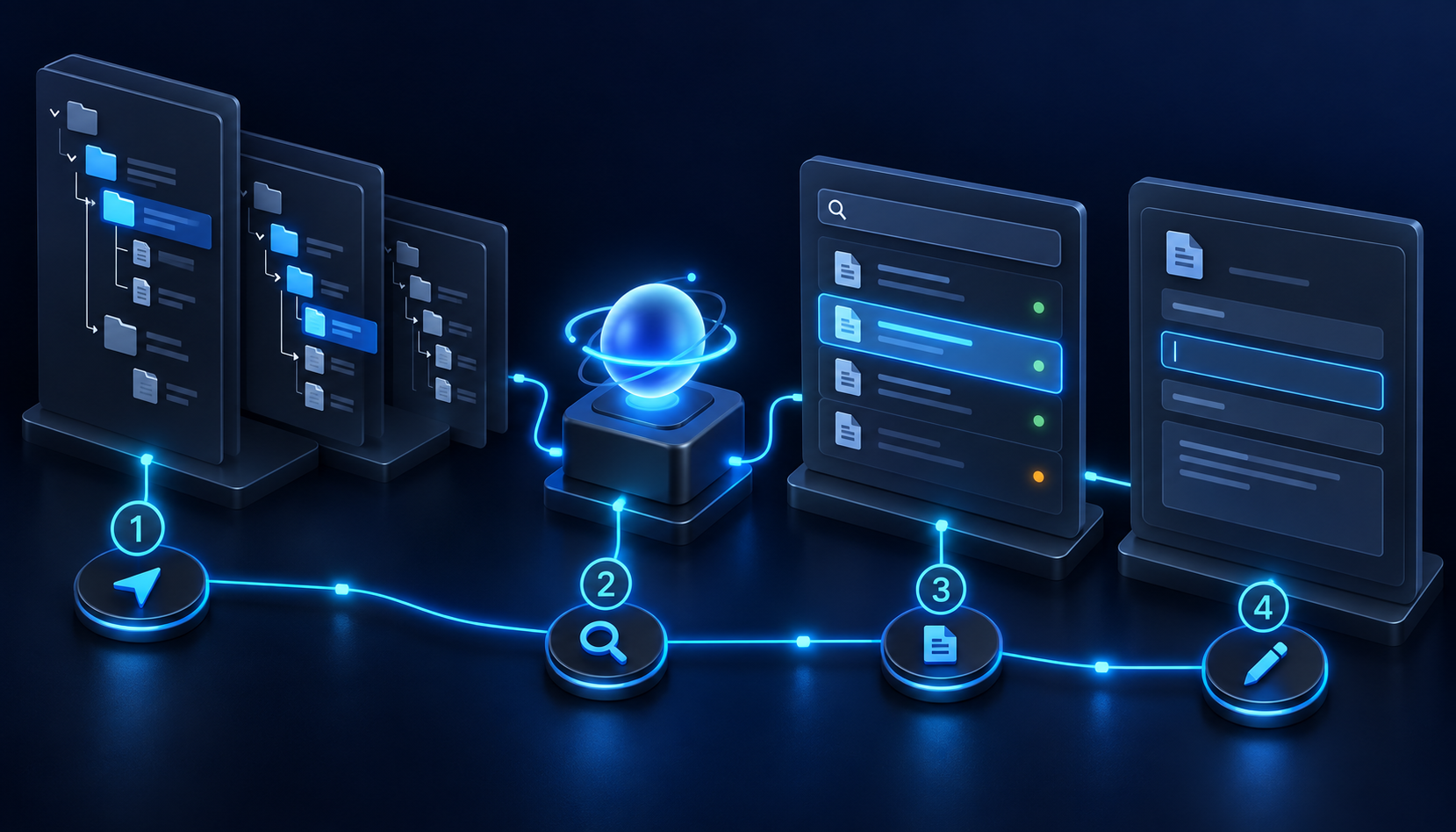
Explorer encouraged authors to browse. Its cascading tile view exposed successive levels of the content hierarchy, while table view presented a more traditional tree. The editor pane separated details, content fields, and versions. Filters could narrow content by properties such as language, site, creator, modifier, or workflow, depending on the view and feature. This gave experienced authors a strong sense of location. It also made navigation through a large hierarchy part of routine work.
Content mode is optimized for a different starting question. Instead of “Where is this item in the hierarchy?” the primary question becomes “What item do I need to create or find?” Sitecore describes Content mode as a focused, full-screen experience. Search returns a flat, paginated list, and an opened item exposes its fields in full view. Authors can search within that item to locate a particular field.
The new model can reduce clicks when authors know the item name or enough of it to search. It also removes some ambient context. The official Content mode search documentation warns that items with the same name can appear more than once and that search results do not show the item path. This is not a minor footnote. Duplicate names are common in multisite and component-content structures. Your authoring procedure needs a verification step before any edit.
A practical workflow map
| Explorer outcome | Primary destination | Migration note |
|---|---|---|
| Browse a hierarchy to locate an item | Page Builder Content mode | Use flat search when the item is known; use the Content tree when hierarchy matters. |
| Create a page, folder, or content item | Page Builder Content mode | Guided insert options show templates valid beneath the selected item. |
| Edit all fields of an item independent of presentation | Page Builder Content mode | Open the item in full view and use in-item field search where helpful. |
| Create and compare versions | Page Builder Content mode | Use the version menu; comparison highlights field differences. |
| Move an item through workflow | Page Builder Content mode | Use Actions or the relevant configuration panel command, subject to rights. |
| Schedule version publishing availability | Page Builder version controls | Availability does not automatically publish the item. |
| Publish content | Page Builder publishing controls | Validate languages, related items, and local publisher rights. |
| Perform advanced structure or administrative work | Content Editor when required | Document exact cases rather than giving all authors broad fallback access. |
The distinction between the Content tree and flat search matters. Content mode is not search-only. Official instructions say authors can create from the toolbar, an item context menu, or the Content tree context menu. If a task depends on the parent-child relationship, begin from the intended parent in the tree. If a task depends on speed and the item is already known, begin with search.
Teach identity checks for duplicate names
Explorer users may have relied on visible ancestors to distinguish “Hero,” “Settings,” or “Navigation” items. In a flat list, that shortcut can disappear. Build a lightweight identity check around fields that your implementation reliably exposes. The check may include site, language, template, version, a known field value, or the page/component relationship. Do not invent a universal indicator; test the actual view in your tenant and document what authors can see.
- Search for the item using a distinctive portion of its item or display name.
- Open the candidate result.
- Verify the current site or content context through the fields and navigation available in your tenant.
- Confirm language and version before editing.
- For high-impact shared content, preview at least one known consuming page or ask a reviewer to confirm scope.
Shared content deserves special treatment because editing one item can affect multiple pages. Explorer made presentation independence explicit, but the underlying risk remains in Content mode. Page Builder’s Editor mode can help authors understand a page’s presentation, while Content mode provides the complete field-focused view. Use both intentionally: Editor mode for visual context, Content mode for item-level work.
Do not hide Content Editor from the operating model
Sitecore’s current navigation documentation describes Content Editor as the place for advanced content and layout editing, access to full item fields, and workflow management. The deprecation notice also says some advanced or administrative scenarios may require it. That does not mean every former Explorer user should default to Content Editor. It means the target model has two lanes.
The routine lane belongs in Content mode. The advanced lane belongs in Content Editor for named tasks performed by authorized roles. Examples must come from your validation, not folklore. A responsible runbook might say, “Use Content mode for standard creation, search, field editing, versions, comparison, and workflow actions. Escalate to the platform team for task X because our implementation currently requires Content Editor.” This is clearer than telling authors to “try Content Editor if Content mode does not work.”
3. Build a readiness inventory before training authors

The fastest safe migration begins with evidence about how Explorer is used. Do not start by rewriting screenshots. Start by listing outcomes. Interview content operations, regional authors, reviewers, publishers, and the support team. Review existing standard operating procedures, onboarding material, recorded demos, and support tickets. For each Explorer task, record frequency, business impact, executing roles, sites, languages, templates, workflow states, and publishing responsibility.
A useful inventory row looks like this:
Task: Create a localized campaign page
Role: Regional author
Sites: Brand A / Ecuador, Brand A / Colombia
Languages: es-EC, es-CO
Parent location: /Campaigns/2026
Allowed templates: Campaign Landing Page
Workflow: Draft -> Regional Review -> Approved
Publishing owner: Central publishing team
Target tool: Page Builder Content mode
Validation result: Pass / Fail / Partial
Evidence: test item ID, tester, date, notes
This is the article’s concrete artifact: a testable record rather than a generic migration statement. Adapt the fields to your governance model, but keep the evidence column. Evidence prevents a green status based only on somebody remembering that a demo “looked fine.”
Inventory tasks, not buttons
A button-by-button comparison overfits the old interface. For example, Explorer exposed creation through its own Create menu. Content mode can create from the toolbar, an item context menu, or the Content tree context menu. If the inventory says “replace Explorer Create button,” the team may search for visual equivalence. If it says “create a valid Campaign Landing Page beneath the 2026 campaign folder,” the test stays tied to the business outcome.
Include destructive and exceptional tasks. Teams often validate create and edit but forget rename, delete, duplicate, restore, language creation, version deletion, or a rejected workflow state. Sitecore documentation warns that deleting an item or folder in Page Builder deletes all versions in every language and includes subitems; the deleted material moves to the recycle bin. That consequence deserves role review and explicit training.
Validate permissions with representative accounts
Administrator testing is insufficient. Administrators can see insert options, fields, commands, and tree areas that ordinary authors cannot. Build a small role matrix and test with representative accounts. At minimum, cover author, reviewer, publisher, and platform administrator if those responsibilities are distinct in your organization.
| Capability | Author | Reviewer | Publisher | Administrator |
|---|---|---|---|---|
| Open Page Builder Content mode | Test | Test | Test | Test |
| Search expected scope | Test | Test | Test | Test |
| Create from valid insert templates | Test | As designed | As designed | Test |
| Edit required fields | Test | Test | As designed | Test |
| Create and compare versions | Test | Test | Test | Test |
| Execute workflow commands | Test submit | Test approve/reject | As designed | Test |
| Publish selected languages | No, if separated | No, if separated | Test | Test |
| Use Content Editor fallback | Only if approved | Only if approved | Only if approved | Test |
“As designed” is not a bypass. It means the role is intentionally allowed or denied and the outcome is recorded. If an author cannot see a template, determine whether insert rules or access rights are responsible. Content mode shows only insert templates valid for the selected location, so a shorter list can be correct. The test is whether the role can create the intended item in the intended location.
Test languages, versions, and shared fields
Explorer documentation distinguishes versioned, unversioned, and shared fields. That data model does not disappear when the interface changes. Build test cases that make the differences visible. Edit a versioned field in one language and version. Edit an unversioned field in two versions of one language. Edit a shared field only in a controlled test item where cross-language impact is expected. Confirm the resulting behavior with the content lead.
Also verify how authors select a language and create a missing language version in the current Page Builder experience. Product interfaces evolve in SaaS. Runbooks should describe the current tenant behavior and be dated. Avoid copying a procedure from an older Pages or Explorer document without executing it against the tenant.
Create a gap register
Classify each failed or partial task into one of four buckets:
- Training gap: the capability exists, but the route or mental model changed.
- Permission gap: the intended role lacks required access or sees more than it should.
- Configuration gap: templates, insert options, workflow commands, or structure do not support the intended task.
- Product-scope gap: the task is advanced or administrative and should be routed to Content Editor or Sitecore support.
Give every gap an owner, due date, temporary procedure, and acceptance test. If a temporary procedure uses Content Editor, name the allowed role and the exact task. Broad fallback instructions can quietly expand privileges and undo the usability benefit of the new focused interface.
An admitted limitation of any general migration guide is that it cannot certify your custom templates, security domains, workflows, extensions, or tenant release ring. Those are local facts. The inventory and test evidence are therefore part of the solution, not optional project administration.
4. Rebuild everyday authoring workflows in Content mode

The official path begins in Page Builder. In the top navigation toolbar, select Content to enter Content mode. The Content tree appears in the left panel. Authors can create an item from the main Create item control or from the Actions menu of the intended parent. The selection dialog shows insert templates configured as valid for that location. After selection, the item is created and can be renamed or edited.
This sequence changes what trainers should emphasize. Choosing the correct parent comes before choosing the template. If the expected template is missing, first verify the parent, then permissions and insert configuration. Do not tell authors to select a “close enough” template. Template mistakes become data-model mistakes, and fixing them later may require recreation or administrative work.
Create safely
- Open Page Builder and switch to Content mode.
- Select the intended parent in the Content tree.
- Choose Create item from the toolbar or the parent’s Actions menu.
- Select the approved template from the valid insert options.
- Enter or confirm the item name according to your URL and naming policy.
- Set the correct language and version context.
- Complete required fields and move the item through the configured workflow.
Sitecore distinguishes item names from display names. The item name is used in the item path and URLs; the display name can provide a more readable or localized label. Official Page Builder documentation says changing a display name applies to the current language, while the item name is shared and remains part of the URL. Authors who previously renamed casually in Explorer need a clear rule: use display-name changes for presentation and localization when appropriate; treat item-name changes as URL-affecting operations that may require review.
Find content with flat search
Content mode search accepts at least one character and loads matching items in a flat list as the author scrolls. Selecting a result opens it in full view. This is designed for scale and direct access. It is not a hierarchical search result, and official documentation states that result paths are not shown.
Improve search quality through naming conventions. Distinctive display names help, but they do not replace structural validation. If your implementation contains hundreds of items named “Card,” “Hero,” or “Settings,” the interface is exposing an information-architecture debt that Explorer’s tree may have masked. Consider a separate cleanup initiative. Do not rename production items during the cutover without reviewing URL, references, localization, and governance effects.
Train authors to use the smallest distinctive query that returns a manageable list. After opening an item, verify language, version, template or field pattern, and content context before editing. For shared content, identify known consumers. The absence of a visible path in search results makes that verification a required safety step.
Edit fields in a focused view
Once the item is open, Content mode presents its fields and structure in a full-screen workspace. Search within the item can locate a field directly. This is valuable for large templates with many sections. Use the exact business field name in training examples. “Find the SEO Description field” is more actionable than “scroll down until you see metadata.”
Auto-save behavior requires attention. Sitecore documentation for editing describes concurrent editing and frequent automatic saves. Some rich text interactions may require an explicit save or discard action within the editor, depending on the interface. Authors should not assume that leaving every sub-editor has the same behavior. Test the field types used by your templates and document exceptions.
Concurrent editing also changes team etiquette. The product may not lock an item while another person edits it. Establish an operational convention for high-risk shared items: assign one active editor, use workflow states or team coordination, and compare versions before approval. The software capability to edit concurrently does not eliminate editorial collision.
Rename and delete with context
Page Builder can rename an item or its display name through the item context menu. Because the item name contributes to the URL, review redirects and dependent behavior before changing it. Display names are generally the safer choice when the goal is a localized or reader-friendly label, provided that matches your information architecture.
Deletion is intentionally high impact. Official documentation says deleting an item removes every version in every language and all subitems; deleting a folder removes its contents. Items go to the recycle bin, which provides a recovery path, but recovery is not a substitute for authorization. Limit delete rights where duties require it. Add a pre-delete check that records the target, subitem impact, languages, references if available, approver, and recovery owner.
Use Editor mode and Content mode as complementary tools
Page Builder’s Editor mode is presentation-aware. It shows the page canvas, components, and design context. Content mode is item-focused and presentation-independent. Authors do not need to choose one permanently. A reliable pattern is to inspect or preview presentation in Editor mode, switch to Content mode for complete item-field work, then return to Editor mode for visual validation when the item appears on a page.
This pairing is especially useful when a component displays only some fields of its assigned content item. Official guidance notes that an item can contain fields not represented in the currently selected component but used elsewhere. Editing only what appears on the canvas can therefore miss required metadata or change content with broader reuse. Content mode gives the field-level view needed to evaluate the whole item.
5. Preserve versions, workflow, and publishing governance
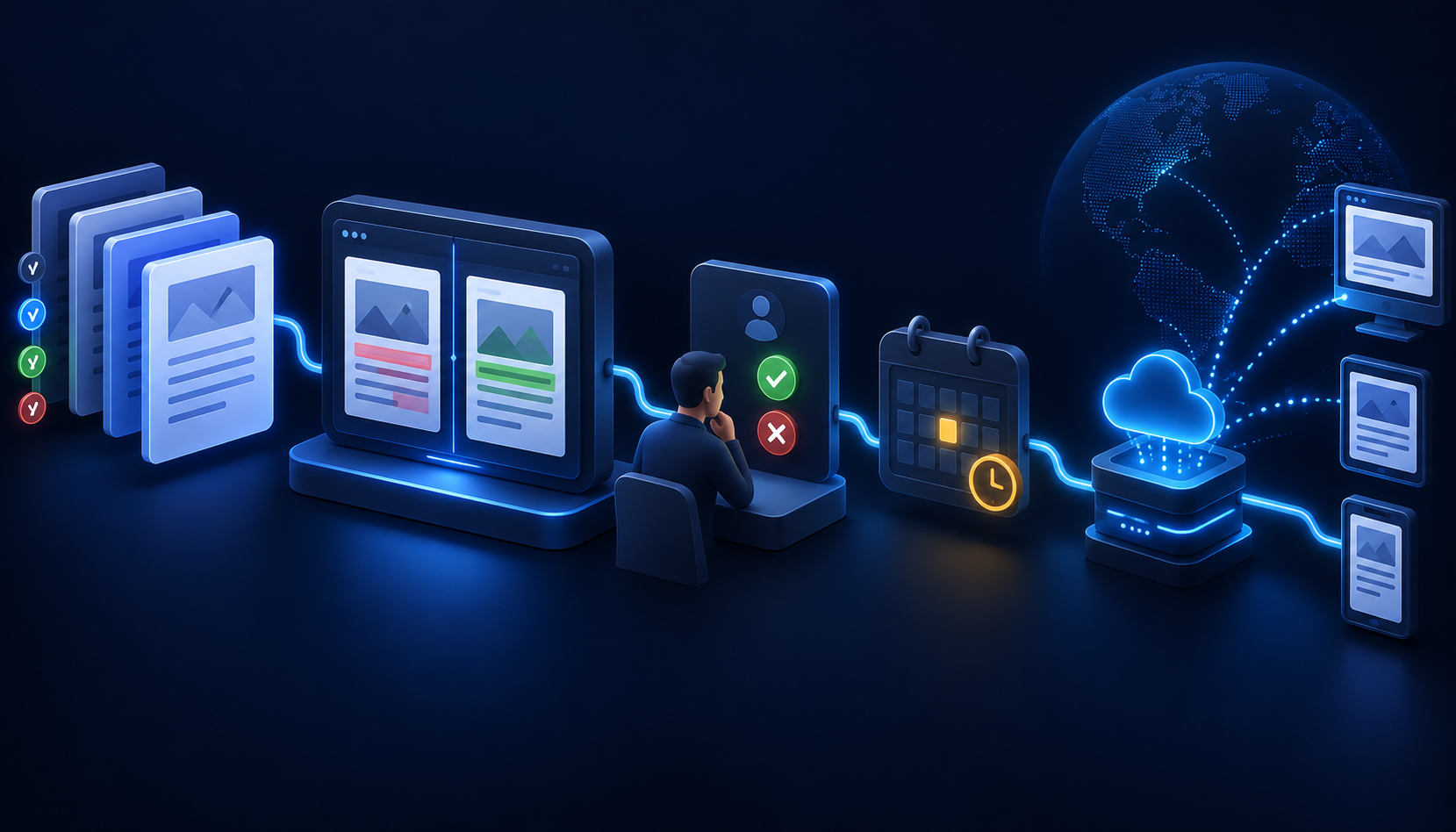
A migration can appear successful during editing and still fail at governance. Versions, workflow, publishing availability, and publication are distinct controls. Train them as a sequence. Do not collapse them into a single idea called “go live.”
Create and compare versions
Sitecore’s current Page Builder documentation provides two routes to create a content-item version. In Editor mode, select the item and use the version menu in the right-hand configuration panel. In Content mode, use the version drop-down in the local top navigation header and choose Create version. Teams migrating from Explorer’s Versions tab should practice the Content mode route with their common item types.
Page Builder can compare two versions of a page or content item. Open the item, use the version menu, choose Compare version, select the two versions, and review highlighted field differences. This capability should become a standard reviewer step for material changes. It is stronger than asking the author to summarize edits from memory.
Define when to create a new version instead of editing an existing draft. A useful policy may require a new version for an approved item, a scheduled campaign replacement, a legal copy revision, or a significant redesign. Your policy can differ, but it should account for workflow state, publication status, and rollback expectations.
Move work through workflow
If a site uses workflow, a new version enters its configured initial state. Page Builder exposes relevant workflow actions through Actions in the top navigation toolbar and, in applicable contexts, through the configuration panel. Exact command names depend on the custom workflow. They may be Submit, Approve, Reject, or organization-specific terms.
Test every transition with the role that should execute it. A reviewer seeing a button under an administrator account does not prove that reviewers can use it. Confirm that required fields, validation, comments, and notifications behave as expected. If a workflow command is missing, investigate rights and configuration before routing the entire task to Content Editor.
Keep separation of duties intact. The retirement of Explorer is not a reason to merge author, approver, and publisher privileges. If the old procedure depended on Explorer roles, reproduce the business control through appropriate Page Builder and Content Editor access, then validate it.
Understand scheduling correctly
Sitecore distinguishes publishing availability from automatic publication. A version can be configured to become available or unavailable for publishing during a time window. That schedule controls which version is eligible. It does not automatically execute publication. Official documentation explicitly says a user must still click Publish during the specified interval.
This distinction prevents two operational incidents. First, a team may schedule availability and assume the new version will appear automatically. Second, a team may make all versions unavailable and then publish, which can remove the item from Experience Edge. Your runbook should spell out the intended publisher, publication time, languages, and verification step.
Use a release record for scheduled content:
Item and version:
Site and language:
Workflow state:
Availability start/end:
Publish execution owner:
Planned publish timestamp:
Publish option:
Related content or media check:
Experience Edge verification:
Rollback version and owner:
Publish deliberately
Publishing saves publishable content to Experience Edge, where the delivery application can retrieve it. Explorer documentation describes options such as Smart publish, republishing, publishing subitems, and choosing language versions. The exact Page Builder presentation can change, so validate current controls in the tenant and update screenshots near the cutover.
Prefer the narrowest publishing action that meets the need. Smart publication of a changed item is usually lower risk than a broad republish. Publishing subitems can be correct for a prepared branch but dangerous when the parent has unrelated work. A full republish is an operational action, not a routine author shortcut.
Related items matter. A page may depend on media, component data sources, renderings, layouts, or templates. A publisher should verify that required related content is approved and eligible. If your publishing interface offers related-item handling, test it with a representative page. Then verify the result through the delivery site or an appropriate Experience Edge query used by your support team.
Define rollback before cutover
Rollback for an authoring-interface migration rarely means restoring the Explorer application. It means recovering from content operations performed during the transition. Identify how to restore a deleted item from the recycle bin, how to return to a prior approved version, how to correct a wrong workflow state, and how to republish the intended language. Assign each recovery action to a role.
Do not promise a one-click rollback without testing. References, descendants, language versions, and delivery caches can complicate recovery. Run one controlled exercise in a non-production context and retain the evidence. This limitation should be explicit in the cutover plan.
6. Execute a controlled cutover, adoption plan, and support model

A short deadline can tempt teams into a single announcement and a link to documentation. That is communication, not migration. A controlled cutover moves through inventory, pilot, correction, role-based enablement, runbook replacement, and operational support. The work can be compressed, but the order should remain.
Phase 1: discover and classify
Collect Explorer procedures and support patterns. Build the task inventory. Mark each task as routine, advanced, destructive, publishing-related, or obsolete. Assign a target tool: Content mode, Editor mode, Content Editor, another SitecoreAI app such as a media library, or retirement. This removes contradictory instructions before training begins.
Record the official date discrepancy as a release risk. Confirm tenant-specific timing with Sitecore. Because the earlier published date is September 22, 2026, do not schedule essential readiness work after it unless your account team has confirmed availability.
Phase 2: pilot with real roles
Select a small set of authors and reviewers across representative sites and languages. Give them task cards derived from the inventory. Ask them to work using Content mode without an instructor narrating every click. Capture whether they completed the task, where they hesitated, which controls were missing, and whether the result was correct.
A pilot should include at least one duplicate-name search, one localized item, one multi-version item, one workflow transition, one scheduled-availability scenario, and one publishing verification if the pilot environment permits it. Include an expected denial, such as an author being unable to publish, so the test validates restrictive rights as well as capabilities.
Do not fabricate productivity gains. Measure them. If you want to claim that flat search reduces authoring time, time the same representative task under the old and new procedures while Explorer remains available. Record task definition, participant role, sample size, environment, and errors. A small pilot can guide local decisions, but it should not be marketed as a universal benchmark.
Phase 3: correct configuration and procedures
Resolve the gap register. Adjust insert options, permissions, workflows, or structure through the proper change process. Route genuine product-scope gaps to a documented Content Editor procedure or Sitecore support. Retest failed tasks with the original role account. Replace Explorer screenshots only after the task passes.
Write role-specific quick guides. An author guide should emphasize creation, search, identity checks, fields, language, and submit actions. A reviewer guide should emphasize version comparison and workflow. A publisher guide should emphasize eligibility, languages, related items, publication scope, and verification. An administrator guide should cover access, templates, workflows, recovery, and escalation.
Phase 4: cut over communications and entry points
Update portals, bookmarks, onboarding modules, support macros, and internal search results that point to Explorer. Archive obsolete material with a visible retirement label instead of leaving two apparently valid procedures online. If you maintain videos, add a banner or description that directs viewers to the new guide.
Communicate the replacement in outcome language:
Use Page Builder Content mode for everyday creation, search, field editing, versions, comparison, and workflow. Use the documented Content Editor escalation path only for the named advanced tasks. Confirm language and version before editing, and verify duplicate-name search results before changing shared content.
Avoid saying “Explorer has been renamed.” That is inaccurate and preserves the wrong mental model. Content mode is a focused Page Builder experience with different discovery behavior.
Phase 5: support the first operating cycles
Staff a short hypercare period around the tenant retirement window and the next major publishing cycle. Give support staff a triage form that captures user role, site, language, item, intended task, target tool, observed behavior, time, and screenshot where allowed. Classify issues against the same four gap types used during readiness.
Monitor meaningful indicators:
- Percentage of inventoried tasks with passing evidence.
- Percentage of active authors who complete a role-based task check.
- Number of unresolved permission or configuration gaps.
- Search-related wrong-item incidents or near misses.
- Content Editor escalations by named scenario.
- Publishing errors, wrong-language events, or missed scheduled releases.
- Support volume and median resolution time during hypercare.
Set local targets based on risk and baseline data. A global guide cannot supply honest thresholds for your organization. A high-volume multilingual publisher should demand more evidence than a small team working on one site.
Troubleshooting patterns
The expected template is missing. Confirm the selected parent first. Content mode displays valid insert templates for that location. Then test with the representative role and inspect insert configuration and access rights.
Search returns several identical names. Open candidates and verify language, version, site or structural context, template, and known fields. Do not edit based on name alone. Add a naming or information-architecture improvement to the backlog if ambiguity is chronic.
An author cannot find a workflow command. Confirm the item has a workflow, the current state allows the transition, and the role has the required rights. Compare behavior with a controlled test account. Use Content Editor only if the scenario is deliberately assigned there.
A scheduled version did not appear. Check workflow approval and publishing availability, then confirm that an authorized user actually executed Publish during the applicable window. Availability is not automatic publication.
A field edit affected unexpected pages or languages. Determine whether the item is reused and whether the field is versioned, unversioned, or shared. Restore or correct through the approved version and publishing procedure. Add the scenario to training.
A delete removed more than expected. Stop related edits, record the item and time, and engage the recovery owner. Page Builder deletion can include all languages, versions, and descendants. Restore from the recycle bin through the tested administrative procedure, then validate references and republish as needed.
Cutover checklist
- Tenant retirement timing confirmed, with the September 22 and October 1 documentation discrepancy recorded.
- Explorer task inventory approved by content operations and platform owners.
- Every routine task mapped to Content mode or another explicit destination.
- Advanced Content Editor cases named, role-limited, and tested.
- Representative author, reviewer, publisher, and administrator accounts tested.
- Insert templates validated at representative parent locations.
- Duplicate-name search and identity-check procedure tested.
- Languages, field sharing, versions, comparison, and workflow transitions tested.
- Publishing availability and manual publication distinction included in training.
- Deletion and recycle-bin recovery exercised in a safe environment.
- Runbooks, videos, bookmarks, support macros, and onboarding references updated.
- Hypercare ownership, triage form, metrics, and escalation contacts published.
Practical conclusion
The best migration does not preserve Explorer habits indefinitely. It uses Content mode for what it is designed to do: create valid content quickly, find known items through flat search, open them in a focused view, and edit fields without presentation getting in the way. It pairs that speed with explicit identity checks, version discipline, workflow testing, and deliberate publishing.
Keep Content Editor in the architecture, but constrain it to verified advanced or administrative needs. Measure migration readiness through completed tasks and evidence. Treat the earlier official retirement date as the safe planning boundary until tenant timing is confirmed. Most of all, teach authors the new mental model. A focused search-and-edit experience can be faster than browsing a deep tree, but only when the organization replaces the context that the tree used to provide with clear naming, verification, governance, and support.
Official references
- SitecoreAI changelog: Explorer deprecation and Content mode replacement
- SitecoreAI changelog: Content mode for faster creation and search
- Create and find content in Page Builder Content mode
- Work with versions in Page Builder
- Create, delete, and rename items
- Explorer documentation and deprecation notice
- SitecoreAI developer overview